Shopping
The Shop tab shows a shopping list for the week. It can come from the plan or be a blank list you fill by hand. Check items off as they go in the cart, then record what you bought.
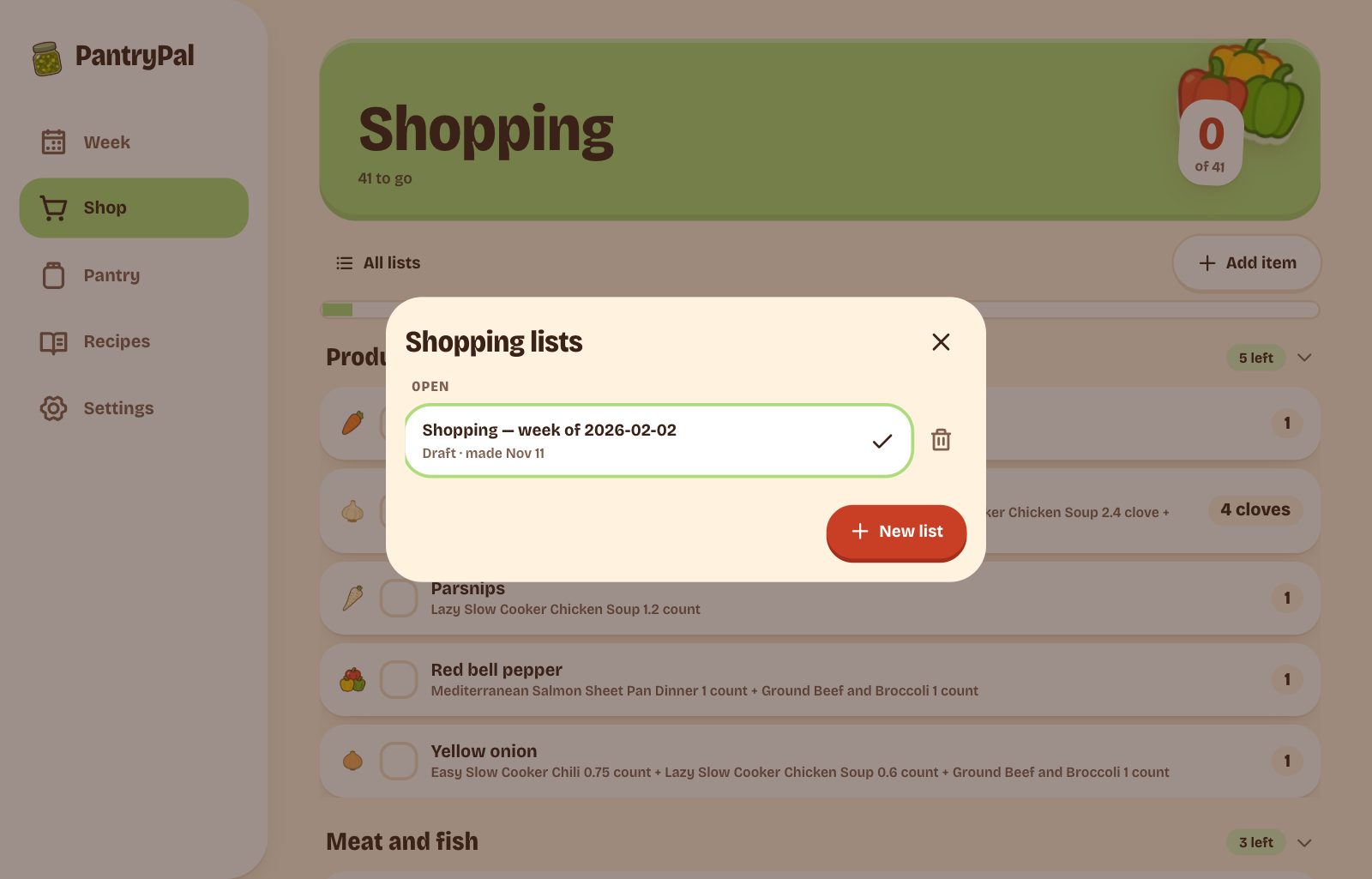
Get a list
The app opens the current week's plan list when one exists. If the week has a plan but no list, it offers Make the shopping list. It does not show an older week's list.
When there is no plan, the app opens the newest open list, or offers Start a blank list.
Tap All lists above the aisles to open any open or done list, start a new list, or delete one.
A plan list is built from planned meals minus stock on hand. Stock that is known and covers a need is left off. An item whose amount is unknown, or whose units do not convert, gets a check the pantry note instead of a guessed amount. If the pantry marks the item as Running low or Out and the amount is unknown, the list gets the full committed amount.
A blank list is not linked to a plan. It has no update banner and no regenerate control.
Running low
Under the aisles, a Running low section lists pantry ingredients marked Running low or Out that are not already on the list. The app reads the pantry each time you open the list, so a change there shows at once.
Tap Add on a row to put it on the main list. The row becomes a normal item you can check off.
Shop
Items are grouped by aisle, such as Produce, Meat and fish, and Dairy. The header shows how many are left, and the bar shows progress. Tap a row to check it off; tap again to clear the check.
Most items show why they are there, for example the planned recipe and its amount. An item added by hand says Added by hand.
Tap Add item above the aisles, type a name, and tap Add. The app matches the name to an ingredient when it can. A name with no match stays as free text and is skipped when you finish the list.
An empty list shows Add an item in the middle of the screen. Both buttons open the same sheet.
When the plan changes
If the plan changes what must be bought, a banner says Your plan changed. Update the list to match. Tap Update the list. The app replaces generated items that are not checked yet. Items you added and items already checked stay.
Delete the list
Delete list removes the list and every item on it, checked or not. Purchases already added to the pantry stay. Confirm with Delete list; Keep the list cancels. You can also delete a list with All lists.
Finish the trip
Tap Done shopping, then Add to pantry. The app asks you to check what you actually got. Edit a quantity if it differs from the plan. An item that is not tracked in the pantry shows Skipped.
Add to pantry is disabled until at least one item is checked. Checked items become pantry purchase movements, and the list closes as done. Each received ingredient gets today's date as its purchase date. If the ingredient has a shelf life, the app also sets its expiry date. The result screen says Shopping done! and links to See the pantry.
Items left unchecked stay on the finished list and do not carry over to the next one. The app has no undo for finishing a list. If an amount is wrong, correct it on the Pantry tab.
Through the API or MCP
The app covers the normal trip. These tasks are API or MCP only:
- Substitute an ingredient, edit an item, or check items with actual amounts:
shopping_update. - Complete a list with received quantities, or without writing stock:
shopping_complete. - Change a list's title or notes.
See Common MCP tasks and the MCP tool reference.