Recipes
The Recipes tab is the recipe box. Tap a card to read the recipe, change its servings, or start cooking.
Use New recipe on the Recipes tab, or Edit recipe on a recipe page, to create and change recipes in the app. An AI assistant or an API client can also create and change recipes. See Create and edit recipes.
Browse the box
Cards show the photo, title, total time, and base servings. A recipe that is still Want to try carries a New to try tag.
Two status views are available:
| View | Shows |
|---|---|
| Rotation + want to try | The default. Trusted recipes and new ones. |
| Never | Recipes you do not want to cook again. Each has Move to rotation. |
The meal chips (All, Breakfast, Lunch, Dinner, Snacks, Dessert) combine with the status view. Search recipes filters by text. The view, meal, and search are kept in the page URL, so Back and shared links keep the same list.
Archived recipes have no UI. They do not appear in any list and have no status control.
Read a recipe
The recipe page shows the photo, time, base yield, tags, and a link to the original page when the recipe was imported.
Use the servings stepper to change the amount. The server scales the ingredient amounts; scaling-exempt ingredients and lines without a quantity stay as written.
Each ingredient shows a pantry mark:
- A check means the pantry has enough.
- ½ means some, but not enough.
- + means not in the pantry.
- No mark means the pantry amount is unknown.
What am I missing? lists Need to buy and Running short ingredients. Optional ingredients are not counted. Unknown amounts are not treated as zero; check those in the pantry.
Set a recipe status
Use Rotation, Want to try, or Never in the Keep in rotation? row on the recipe page. Rotation and Want to try save at once. Never asks first: tap Never cook it again to confirm, or Keep it to stop. Never recipes are hidden from the default box and from the week's swap picker.
After you cook a Want to try recipe, the done screen asks How was it?:
- Cook it again moves it to Rotation.
- Never again moves it to Never.
- Not now leaves the status unchanged.
Delete or archive a recipe
The recipe page has one of two actions under the status control. Both have a red outline, because both remove the recipe from your box:
- Delete recipe removes the recipe. It shows only when the recipe has no cook events. The app asks you to confirm.
- Archive recipe shows when the recipe has cook events. Archive moves the recipe to the archived status and keeps its cook history. An archived recipe does not show in any list.
The API refuses DELETE /recipes/{idOrSlug} with a conflict when cook events
reference the recipe. Use the archived status in that case.
Cook a recipe
Tap Start cooking. Cook mode shows one step at a time, with a progress bar and Back / Next step buttons. Swipe left or right on a phone. On a keyboard, use the arrow keys.
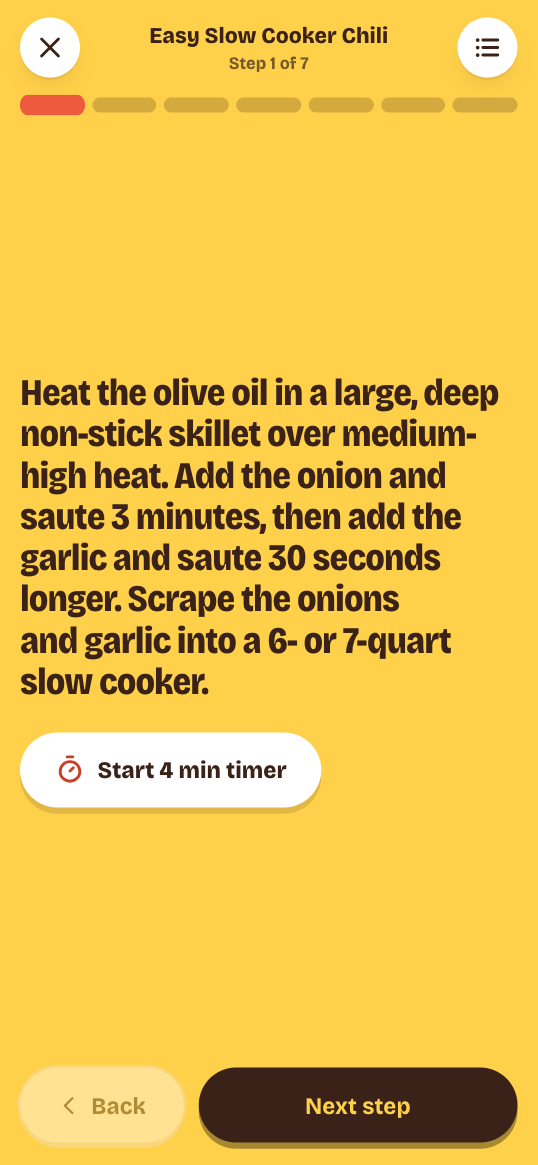
The list button opens the full ingredient list for the chosen servings. A step with a duration has a timer button: Start 10 min timer, then Cancel when needed. Timers beep and vibrate where the browser allows.
A step that has ingredient links shows them as pills under the instruction. A pill has the ingredient name, the amount in the chosen servings, and the prep note. See Create and edit recipes.
The screen stays awake while you cook when the browser permits it. This needs HTTPS (or localhost). See Access and security.
Cook mode does not change the server until you finish. Your place is saved on this device. If you leave after the first step, the app offers Resume at step N or Start over, and the recipe page shows the same resume link. Timers are not saved.
Cook together
Two to four people can split one recipe. Each cook follows only their own steps. This works best on a shared tablet in landscape.
- Add each person in Settings > People.
- Open cook mode. When the household has two or more people, Who's cooking? opens by itself. Select two to four people, then tap Next. To cook alone, tap Just me or close the sheet. To change cooks later, tap Cooks.
- Under Assign steps, tap a name on each step to give that step to that cook. Tap a name on a group heading, such as "Sauce", to give the whole group to that cook. The app starts with groups shared out in turn.
- Tap Start cooking.
The screen shows one panel per cook: two side by side, or a 2 × 2 grid for three or four cooks. On a narrow screen, the panels stack. Each panel has its own Back and Next buttons. After a cook's last step, Done ends that cook's part. Swipe and arrow keys do not move steps in this view.
Timers stay in each cook's step, as in single-cook mode. Alerts show at the top with the cook's name. A running timer also shows at the top when no panel shows its step, for example after that cook moved on. Tap it to move that cook back to that step.
Finish cooking appears when every cook is done. To go back to one cook, tap Cooks, then Just me.
The cooks and their places are saved on this device with the rest of your progress. When you come back, the app shows Resume instead of a step number. Each person cannot yet follow along on their own phone.
Finish or undo
Finish cooking uses the servings shown on screen:
- If you opened cook mode from a planned meal, it completes that cook.
- If you started from the recipe box and the same recipe is planned for today, the app asks Cooking tonight's planned meal? Choose Yes, that one or No, just cooking.
- Otherwise it records an ad-hoc cook, outside the plan.
The done screen shows how many pantry items were used or reduced. The server deducts the scaled, non-optional ingredients from the pantry. It never records more than the stock on hand. A line with no quantity, no stock row, or an incomparable unit is left unchanged and may appear under Heads up. A stock row with an unknown amount stays unknown.
Undo is on the done screen and in the toast. It restores the stock the cook took out. A planned cook returns to planned; an ad-hoc cook is deleted. You can also undo a finished meal from the Week page.
Through the API or MCP
Use these for bulk work and automation:
- Create or edit many recipes, or set step ingredient links:
recipe_save. - Add a rating or a note about a status change:
recipe_set_status. - Read status history:
GET /recipes/{idOrSlug}/status-history. - Check a recipe against dietary rules:
recipe_check. See Dietary rules.
See Common MCP tasks and the MCP tool reference.