Pantry
The Pantry tab shows what you have at home. Each row is one ingredient. Rows are grouped by ingredient category, in the same order as the shopping list, and sorted by name.
Find stock
Use Search the pantry to filter by name. The chips under the search box filter by category. Everything shows all categories; the other chips appear only when that category has stock.
Add stock
Tap Add in the header. If the pantry is empty, tap Add in the middle of the screen. Then fill in:
- What is it?
- How much? (optional)
- Unit
- Shopping aisle
The aisle is the ingredient category. It groups pantry rows and shopping items. It is used when the app creates an ingredient.
With an amount, the app adds to the stock already recorded for that ingredient. A new name creates a new ingredient. Without an amount, the app records the item as On hand and leaves the quantity unknown.
Change an amount
A measured row has − and + buttons. One tap changes the amount by:
| Unit | Step |
|---|---|
lb, kg, l, cup, gallon | 0.5 |
g, ml | 50 |
| Any other unit, or no unit | 1 |
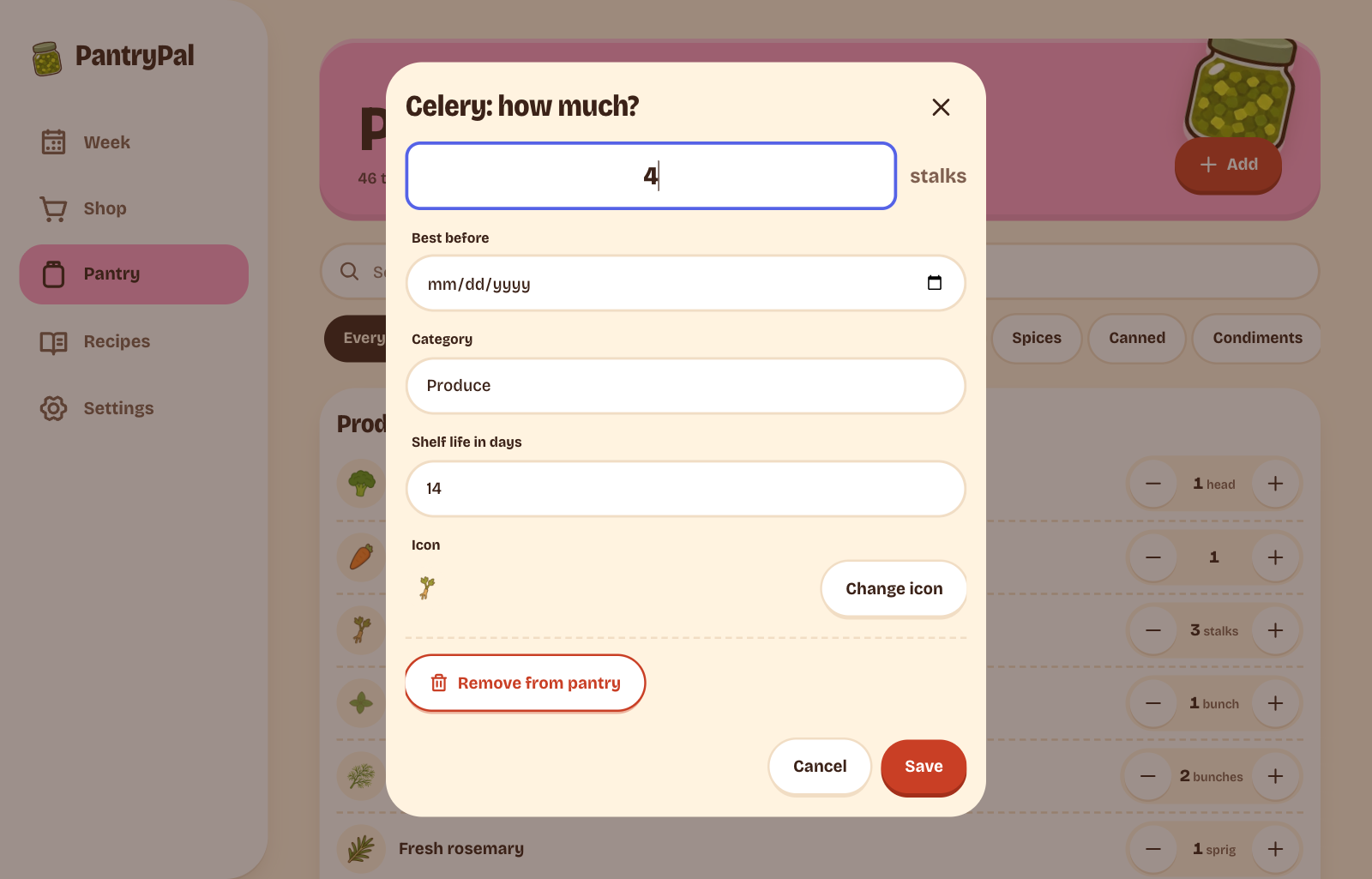
The amount cannot go below zero. Tap the amount or the row name to open a sheet and type an exact amount. Tap Save.
The same sheet shows Category, Best before, and Shelf life in days. Change any value, then tap Save. Change Category to move the ingredient to another group. Clear Best before to remove the date. Clear Shelf life in days to stop dating future purchases of this ingredient.
A row with an expiry date shows Best before. An item that expires in three days or less gets an Expiring soon badge. An item past its date gets an Expired badge. Tap Add to list on either row to add the ingredient to this week's list, the newest open list, or a new list.
When a shopping trip completes, each received ingredient gets a purchase date of today. If the ingredient has a shelf life, the app sets its expiry date to today plus that number of days.
An unmeasured row shows a status pill: On hand, Running low, or Out. Tap the pill to change it. Not sure can also appear when another client set an unknown status; the app does not offer it.
For measured items, the server sets the status:
- Zero is Out.
- At or below the ingredient's par level is Running low.
- Anything else is On hand.
Exact, approximate, and unknown amounts
| State | How it is set |
|---|---|
| Exact | Enter an amount in the app or send qty and unit through the API or MCP. |
| Approximate | Set qtyApprox: true through the API or MCP. The app has no control for this flag. |
| Unknown | Add an item without an amount, or send qty: null. |
An unknown amount is not zero. The recipe page does not count it as missing. A shopping list adds a check the pantry note instead of assuming the item is missing, unless the item is marked Running low or Out. In that case the list gets the full amount the plan needs.
The app records exact amounts. It shows an approximate amount as a normal number, without an estimate marker.
Sweep the pantry
A sweep is a relaxed check of your stock. It has no time limit. Tap Sweep in the header. The header shows Sweep only when the pantry has items.
The sweep shows one item at a time with its icon, name, and amount. The order is random. It changes each time you open the sweep. The sweep covers every item, with or without an amount, except items that a recent sweep already covered (see Items you answered are left out for a while). A line such as "4 of 38" and a thin progress bar show where you are. Choose one answer:
| Answer | Key | What it does |
|---|---|---|
| Still have it | 1 or Right arrow | Marks the item as checked today. The amount does not change. |
| Running low | 2 or Left arrow | Sets the status to Running low and adds the item to the list. The amount does not change. |
| All out | 3 or Down arrow | Sets the item to Out and adds it to the list. A measured item goes to zero. |
| Skip | S or Up arrow | Moves on. Nothing changes. |
You can also drag the item card. Drag it right for Still have it and left for Running low. The card follows your finger or mouse and tilts a little. A label with an icon fades in as you drag. At 80 pixels the label turns solid and the edge of the card shows a color. Let go past that point to answer. Let go before it, and the card goes back. If your device is set to reduce motion, the card does not tilt or fly off, but the label and the color still show. The list is the same one Add to list uses: this week's list, the newest open list, or a new list.
The app saves each answer at once. Tap Finish at any time to end the sweep and see the summary. The sweep also ends when you answer every item. The summary looks like this: "Swept 4 things. 2 went on your shopping list." Skipped items are not counted. Tap Done to close it. You can close the sweep early with Esc or Close. The answers you gave stay saved.
Undo an answer
Tap Undo or press U to go back to the previous item. You can do this again
and again, back to the first item. Undo is off until you have answered an
item. Undo:
- puts the item's status and amount back as they were;
- takes the item off the shopping list if the answer added it there;
- removes the item from the "left out for a while" list and from the count of swept things.
After Still have it, undo keeps the "checked today" mark. It does not change the amount. You cannot undo from the summary.
Items you answered are left out for a while
After you answer an item, later sweeps leave it out:
| Answer | Left out for |
|---|---|
| Running low or All out | 7 days |
| Still have it | 3 days |
| Skip | Not at all |
The app keeps this in this browser's local storage, so another browser or device does not share it. If a sweep finds nothing to check, it shows "Everything was checked lately. Nice and tidy!". Tap Sweep everything anyway to sweep all items now.
A finished sweep that has at least one answer counts for the Sweep the pantry mission on the week screen. This also applies when you end the sweep with Finish. The app stores that count in this browser's local storage. See Weekly missions.
Open the sticker book
Tap Sticker book in the header to open the ingredient sticker book. The Pantry tab stays highlighted while you view it.
Remove stock
Open the item's amount sheet, tap Remove from pantry, then confirm with Remove. The toast offers Undo. Undo puts the row back with its amount. It does not restore the row's past stock movements.
Through the API or MCP
These tasks have no web screen:
- Mark stock as checked:
pantry_updatewithaction: "verify". - Add notes, purchase dates, or open dates.
- Read stock history:
pantry_history. - Set ingredient aliases, par levels, default units, or categories
(
ingredient_upsertwithaction: "update"). The web item sheet changes the category for you.
See Common MCP tasks and the MCP tool reference. The REST endpoints are in the REST API reference.