Meal plans
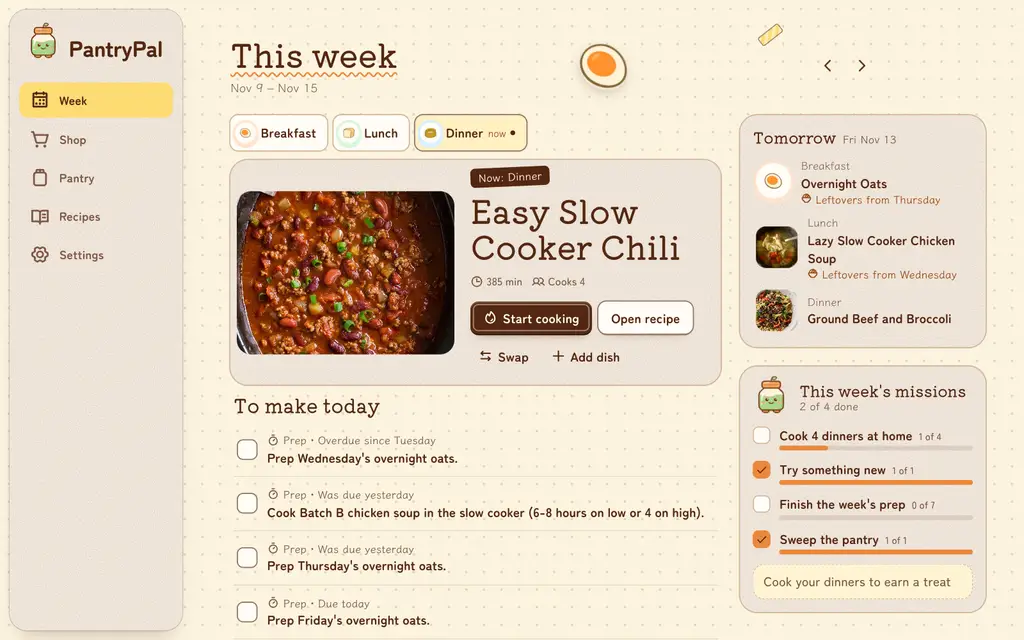
The Week tab shows today's meals and the rest of the current week. An AI assistant usually creates the plan. The app shows it, starts cooks, and lets you change one meal at a time.
Read the week
The header says This week or Week of Nov 2, with the date range below. The arrows beside the title move back and forward one week. This week returns to the current week. The selected week is in the page URL, so Back and deep links work.
Today
On the current week, the top of the page is about today:
- Meal chips. Breakfast, Lunch, and Dinner choose which meal the hero shows. The app preselects the meal for the time of day: breakfast until 10:30, lunch until 15:00, and dinner after that. The chip for that meal says now. You cannot change these times in the app.
- The hero. It shows the chosen meal with a photo, time, servings, and a note such as Also feeds Tue dinner. Tap the title to open the recipe. Start cooking shows while the cook is planned. Swap opens the recipe sheet. A finished meal shows Cooked and Undo. A meal with more than one dish lists the other dishes under the hero, each with its own swap and remove buttons. An empty meal offers Plan something.
- To make today. It lists the cooks for today and the open prep tasks due today, with a Cook or Cooked mark. Tap a prep task to mark it done. Prep tasks that are overdue appear here too. When nothing is due, the list says so. Meals that are leftovers show under Leftovers today.
- Shopping. When the pantry is short for the week, a line such as Pick up 4 things before tomorrow names the first few items and links to Open shopping list. When the pantry covers the week, the page says Pantry covers the week. The page shows nothing for a week that is over.
On a wide screen, a side rail beside these shows Tomorrow and This week's missions. On a narrow screen, they appear below the shopping line. Browsing another week shows only the timeline.
The week timeline
The week is a timeline. On the current week it starts with Now, then Later today, Tomorrow, and Rest of the week, one day at a time. Earlier this week and Earlier today are folded; open them to see meals that have passed. Another week lists its days in order.
Each day lists its meals:
- Breakfast, lunch, and dinner always show. An empty one offers Plan something.
- Snacks and dessert appear only when planned.
- A meal can hold more than one dish, for example a protein and a side. The first dish shows the meal name; each other dish shows With.
- A note can say Made Sunday, Leftovers from Sunday, or Also feeds Tue dinner. These come from one cook feeding several meals.
- An open prep task shows above the meals of the day it is due.
Each meal is a photo tile. A meal with no photo shows a food icon instead. The meal name sits at the top left, and a Leftovers from Sunday label shows when the meal is a leftover. On a screen with a mouse, the swap, add, and remove buttons of a tile show when you point at it or move focus to it. On a touch screen they always show.
The app cannot add or edit prep tasks.
Weekly missions and the Treat Stamp
The current week has a This week's missions card for planned home-cooked dinners, trying a recipe not cooked before the week started, finishing planned prep, and Sweep the pantry. Progress comes from the current plan and completed-cook history; missions without anything planned are left out. The sweep mission is always there. It is done after you finish one pantry sweep in the plan week. The app counts sweeps in this browser's local storage, so a sweep on another browser or device does not count. A gentle nudge appears when more planned dinners remain than nights left, with no penalty for an unfinished mission.
Finishing all planned home-cooked dinners earns the Treat Stamp. Use my treat marks it as enjoyed; this is only a cosmetic reminder, not a reward that changes the plan or pantry. Its used state is stored in this browser's local storage, so it does not sync to another browser or device.
Change one meal
Tap Swap in the hero or the swap button on a meal, or Plan something on an empty one. A meal without a recipe opens the sheet when you tap the row. The sheet lists recipes for that meal type. Use the search field to narrow the list. Each choice shows its time and how much the pantry covers:
- Pantry has it all
- Pantry has 4 of 6
If a planned cook feeds other meals too, the app asks for a scope:
| Choice | Result |
|---|---|
| Just this meal | Only this meal changes. The other meals keep the same cook. |
| This and its leftovers | The cook changes, so every meal it feeds changes too. |
If the cook feeds only this meal, the app does not ask. A swap changes the plan, not the recipe.
A cook that is already done cannot be swapped. Its leftover meals can still be swapped; each one becomes its own meal.
When a swap, an added dish, or a removed dish changes what must be bought, the app shows Your plan changed. Update the shopping list with an Update action. Open Shopping and use Update the list.
Add a side to a meal
- Tap Add dish in the hero, or the add button (+) on the meal's last dish.
- Pick a recipe. The sheet lists recipes for that meal type.
The recipe becomes one more dish on the meal, with its own cook. It cooks the household's default servings for that meal. The other dishes do not change. Swap each dish on its own with its swap button.
To take a dish off a meal that has more than one, tap Remove in the hero or the dish's remove button (trash). A toast offers Undo, which adds the recipe back as a new cook. A leftover or a note has nothing to add back, so it shows no Undo. The app also removes the dish's planned cook when no other meal eats from it. You cannot remove a dish that is already cooked; undo the cook first.
A skipped meal has no add button. Swap it to plan a recipe.
Leftovers
One cook can feed more than one meal. The cook night and the later meals point to the same cook, and the later meals are leftovers.
The timeline marks the later meals and names the day of the cook. The swap scope controls whether only the selected meal changes or every meal fed by the same cook changes.
Finish a cook and undo it
Use Start cooking in the hero, or open a planned meal and use Start cooking on the recipe. Finishing the cook in cook mode completes the planned meal.
A finished cook shows Cooked and an undo button. Undo restores the pantry stock the cook used and returns the meal to planned. The toast says Cook undone. Pantry restored. Leftover meals of a finished cook stay on the plan; they are still to be eaten.
Empty weeks and limits
If the current week has no plan, the page offers Start an empty week. Empty meals then let you plan one recipe at a time, and add more dishes to a meal.
A future week with no plan has a Plan this week button, but weekly planning is not in the app yet. The button shows a Coming soon message. Ask the assistant to create the plan. A past week with no plan says nothing was planned.
The app can change one meal, add or remove a dish, start a cook, finish it, undo it, and mark prep tasks done. It cannot:
- Generate a complete weekly plan in one action.
- Add snack or dessert slots.
- Move cook events, or add or delete them other than by adding or removing a dish.
- Change planned servings.
- Mark a meal skipped or add a free-text meal.
- Edit plan notes or prep tasks.
Use the API or MCP for those tasks.
Through the API or MCP
- Create a plan:
plan_create. - Replace meal slots:
plan_set_slots. Pass an array of specs to put several dishes on one meal. - Swap a meal:
plan_swap_meal. - Add or remove one dish:
plan_dishes. - Change cooks, servings, or plan fields:
plan_update. - Add, edit, or complete prep tasks:
prep_tasks. - Complete, skip, reopen, or undo a cook:
cook_complete. - Compare planned demand with stock:
availability.
See Common MCP tasks and the MCP tool reference.